Flutter Path 学习日记 (一)

前言

1
和 Android 里的 Path 类似,Flutter 中也可以通过 Path 绘制图形...

1、moveTo(x, y) 和 lineTo(x, y)

  • 先看代码
1
2
3
4
5
6
7
8
9
10
11
12
13
14
15
16
17
18
19
20
21
22
23
24
25
26
27
28
29
30
31
32
33
34
35
36
import 'package:flutter/material.dart';

/// Path 的 moveTo 和 lineTo
class PathPage extends StatelessWidget {
const PathPage({super.key});

@override
Widget build(BuildContext context) {
return CustomPaint(painter: PathPainter());
}
}

class PathPainter extends CustomPainter {
final Paint mPaint = Paint();
final Path mPath = Path();

@override
void paint(Canvas canvas, Size size) {
mPaint
..color = const Color(0xFF0095FF)
..style = PaintingStyle.stroke
..strokeWidth = 5;

// 将画笔置于该坐标,即画笔起始点坐标
mPath.moveTo(72, size.height / 4);
// 将画笔画一条直线,到目标坐标
mPath.lineTo(size.width - 72, size.height / 2);
mPath.close();
canvas.drawPath(mPath, mPaint);
}

@override
bool shouldRepaint(covariant CustomPainter oldDelegate) {
return true;
}
}
  • 我们可以通过在 build 方法中返回一个 CustomPaint 来实现自定义页面。
  • 我们可以通过继承 CustomPainter 来自定义一个类似于 Android 中自定义 View 的东西。
  • 继承 CustomPainter 需要重写两个关键方法,其中的 paint 方法内部可以自由绘制。
  • 注意,FlutterAndroid 一样,坐标原点 (0, 0) 位于左上角,右和下为 xy 轴的正方向。
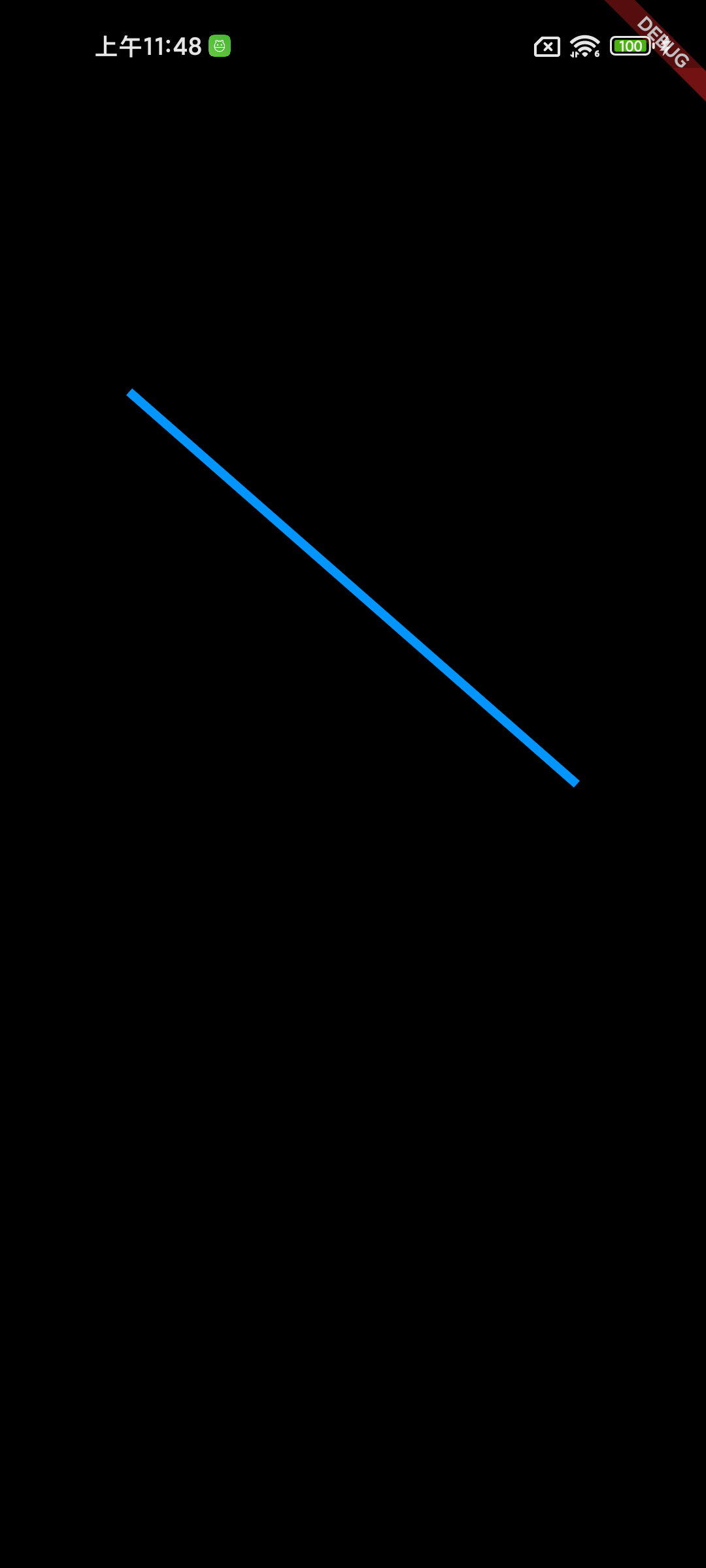
  • 其中的 moveTo 即为将绘制的起始点移动到指定的位置
  • lineTo 则为从起点画一条直线到目标点
  • 以下为上述代码的效果图

2、quadraticBezierTo(x1, y1, x2, y2)

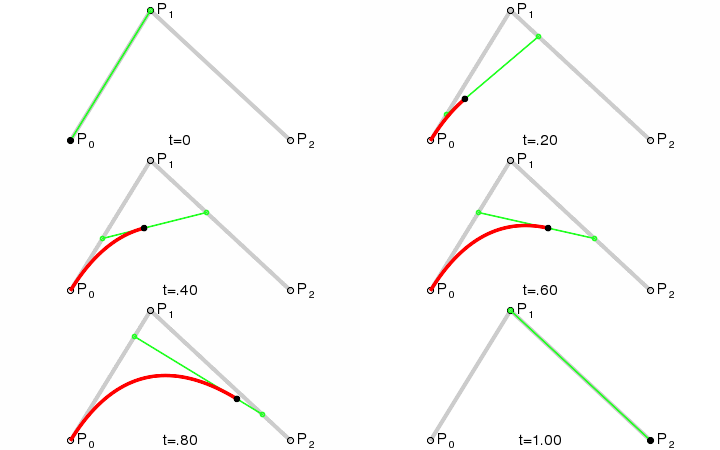
  • quadraticBezierTo(x1, y1, x2, y2) 为绘制二阶贝塞尔曲线
  • 其中 x1, y1 为控制点,x2, y2 为终点
  • 二阶贝塞尔曲线除了起点和终点外,还有一个控制点,如下图

  • 以下为贝塞尔曲线绘制的关键代码
1
2
3
4
5
6
7
8
9
10
11
12
13
14
@override
void paint(Canvas canvas, Size size) {
mPaint
..color = const Color(0xFF0095FF)
..style = PaintingStyle.stroke
..strokeWidth = 5;

// 将画笔置于该坐标,即画笔起始点坐标
mPath.moveTo(0, size.height / 2);
// 画二阶贝塞尔曲线,其中 x1, y1 为控制点,x2, y2 为终点
mPath.quadraticBezierTo(size.width / 2, 0, size.width, size.height / 2);

canvas.drawPath(mPath, mPaint);
}
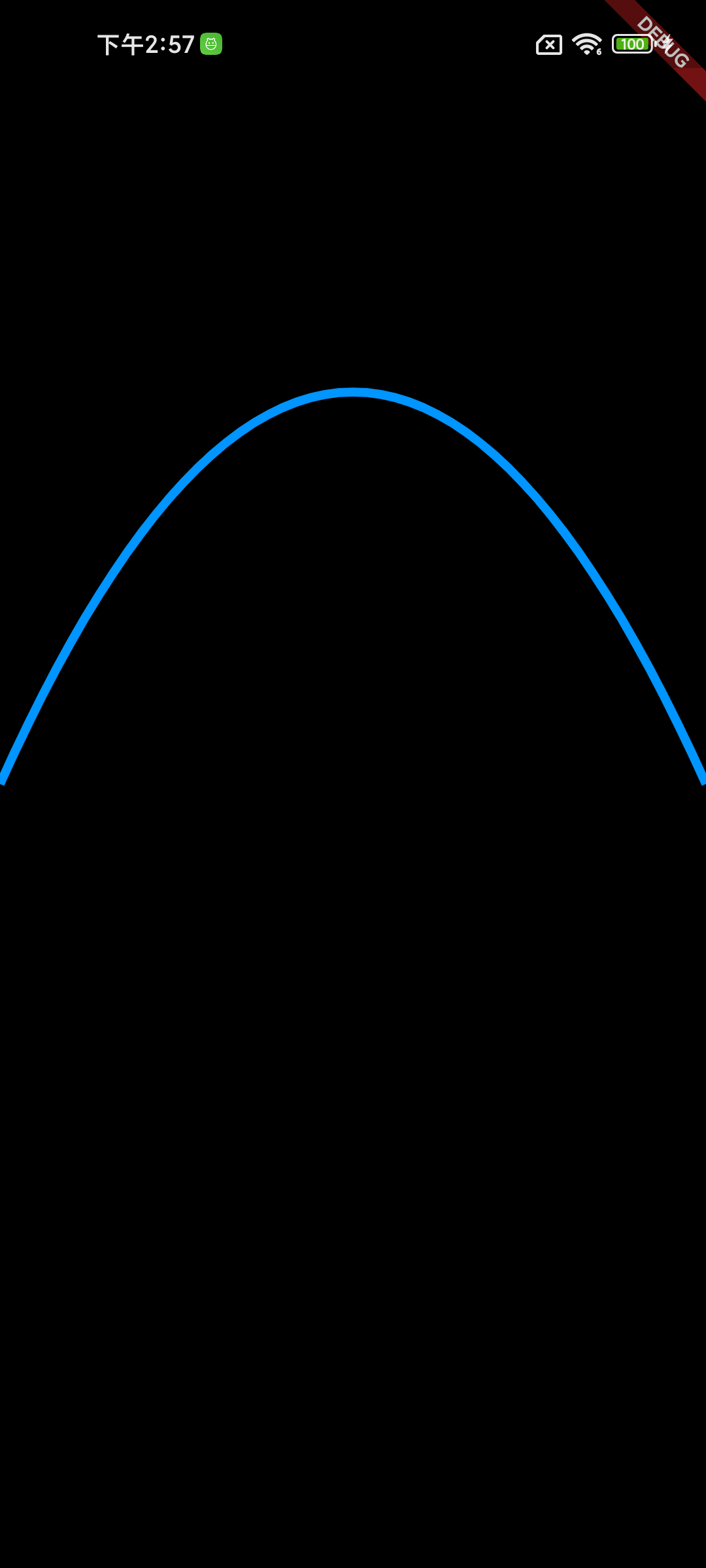
  • 以下为绘制出来的图形

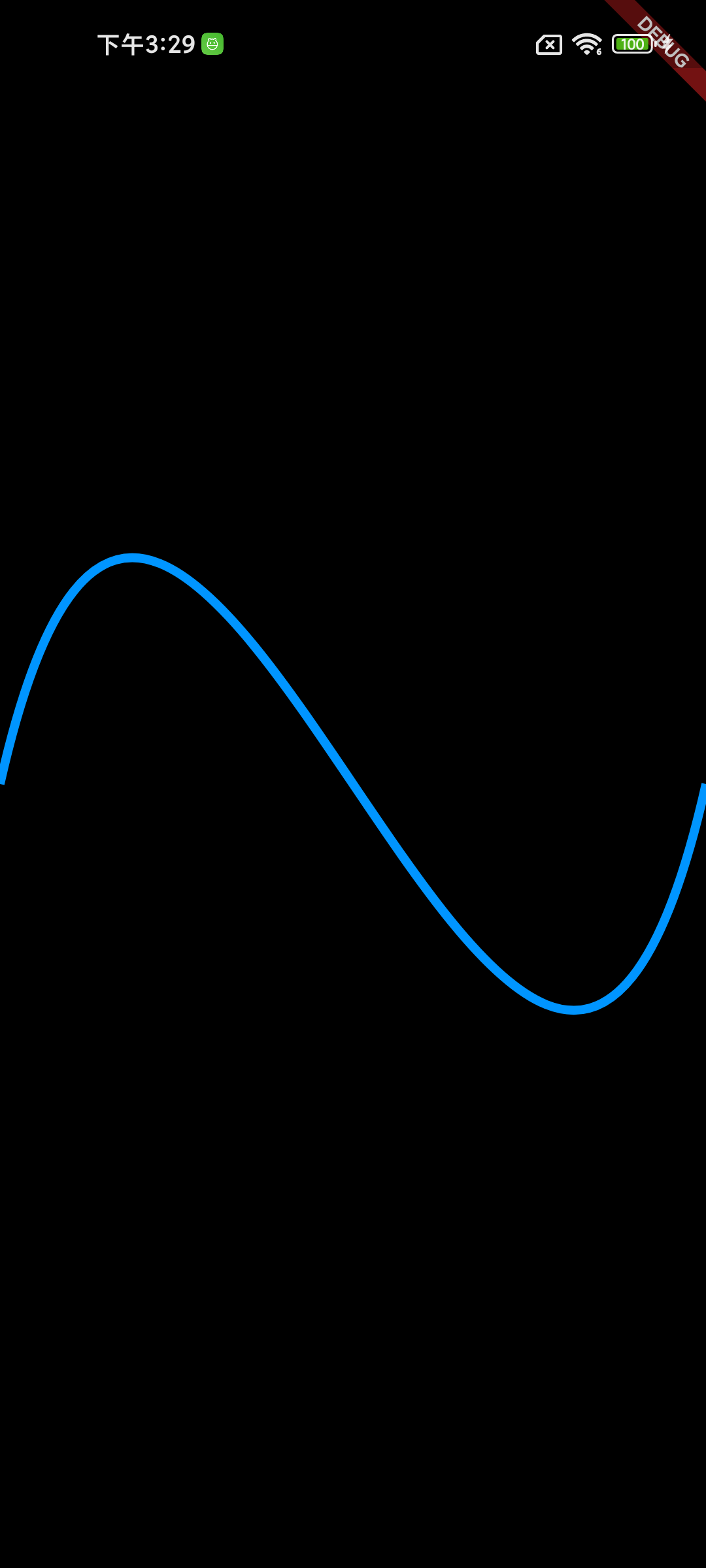
3、cubicTo(x1, y1, x2, y2, x3, y3)

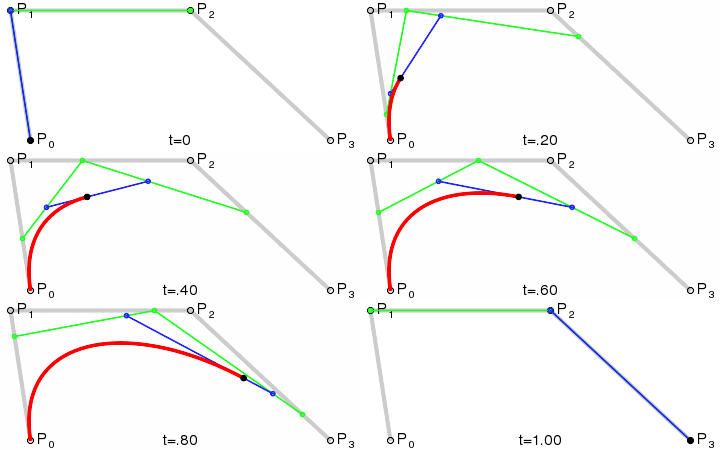
  • cubicTo(x1, y1, x2, y2, x3, y3) 为绘制三阶贝塞尔曲线
  • 其中 (x1, y1) 为控制点1,(x2, y2) 为控制点2,(x3, y3) 为终点
  • 三阶贝塞尔曲线如下图

  • 以下为三阶贝塞尔曲线绘制的关键代码
1
2
3
4
5
6
7
8
9
10
11
12
13
14
15
16
17
18
19
20
@override
void paint(Canvas canvas, Size size) {
mPaint
..color = const Color(0xFF0095FF)
..style = PaintingStyle.stroke
..strokeWidth = 5;

// 将画笔置于该坐标,即画笔起始点坐标
mPath.moveTo(0, size.height / 2);
// 三阶贝塞尔曲线,(x1, y1) 为控制点1,(x2, y2) 为控制点2
mPath.cubicTo(
size.width / 4,
0,
size.width * 3 / 4,
size.height,
size.width,
size.height / 2,
);
canvas.drawPath(mPath, mPaint);
}
  • 以下为绘制出来的图形

4、conicTo(x1, y1, x2, y2, weight)

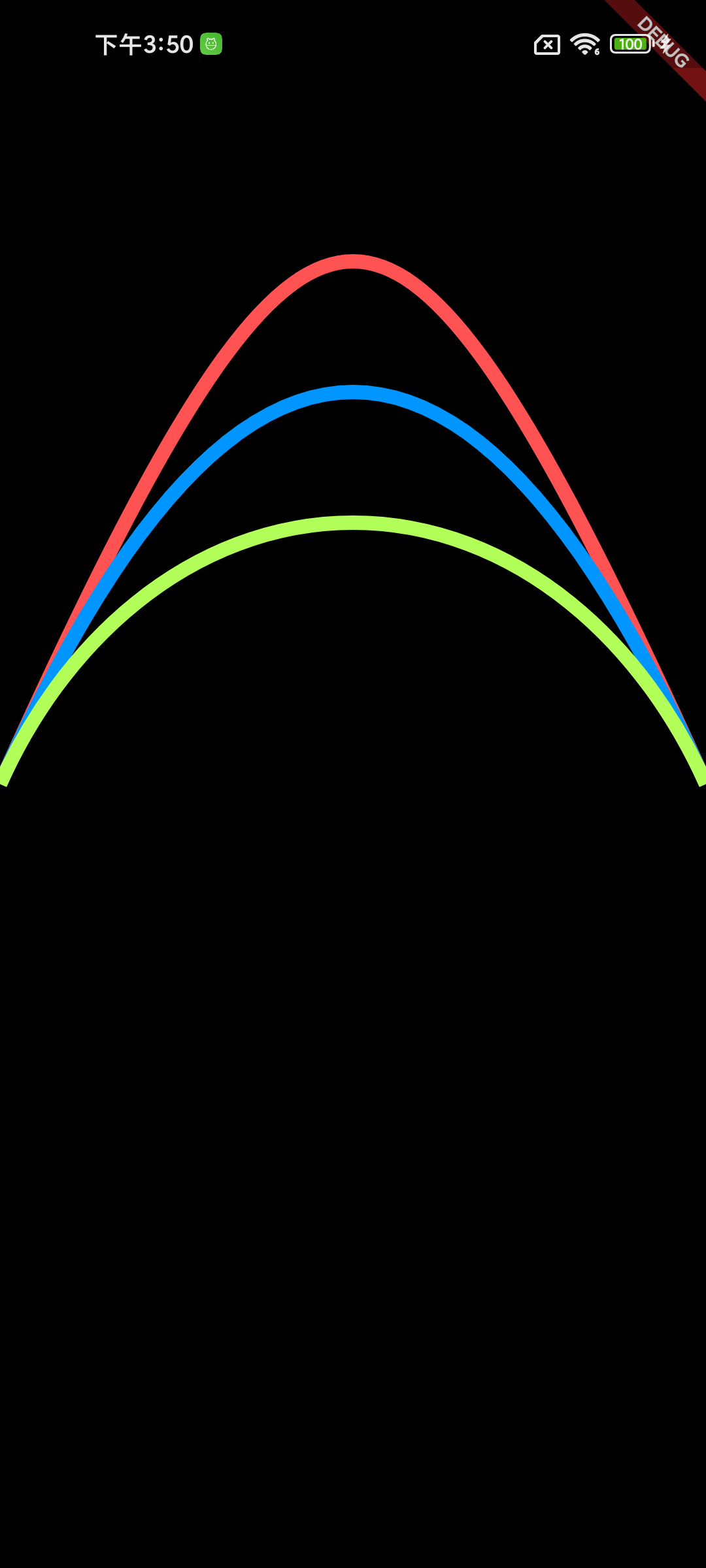
  • conicTo(x1, y1, x2, y2, weight) 为绘制圆锥曲线
  • 其中 (x1, y1) 为控制点,(x2, y2) 为终点,weight 类似于离心率
  • weight 大于 1 时为 双曲线
  • weight 等于 1 时为 抛物线
  • weight 小于 1 时为 椭圆
  • 以下为绘制的相关代码,分别绘制了离心率不同的三条线
1
2
3
4
5
6
7
8
9
10
11
12
13
14
15
16
17
18
19
20
21
22
23
24
25
26
27
28
29
30
31
32
33
34
35
36
37
38
39
40
41
42
43
44
45
46
47
48
class PathPainter4 extends CustomPainter {
final Paint mPaint = Paint();
final Paint mPaint1 = Paint();
final Paint mPaint2 = Paint();
final Path mPath = Path();
final Path mPath1 = Path();
final Path mPath2 = Path();

@override
void paint(Canvas canvas, Size size) {
mPaint
..color = Colors.redAccent
..style = PaintingStyle.stroke
..strokeWidth = 8;
mPaint1
..color = const Color(0xFF0095FF)
..style = PaintingStyle.stroke
..strokeWidth = 8;
mPaint2
..color = Colors.lightGreenAccent
..style = PaintingStyle.stroke
..strokeWidth = 8;

// 将画笔置于该坐标,即画笔起始点坐标
mPath.moveTo(0, size.height / 2);
// 绘制圆锥曲线,其中(x1, y1) 为控制点,最后的参数为离心率
mPath.conicTo(size.width / 2, 0, size.width, size.height / 2, 2);

// 将画笔置于该坐标,即画笔起始点坐标
mPath1.moveTo(0, size.height / 2);
// 绘制圆锥曲线,其中(x1, y1) 为控制点,最后的参数为离心率
mPath1.conicTo(size.width / 2, 0, size.width, size.height / 2, 1);

// 将画笔置于该坐标,即画笔起始点坐标
mPath2.moveTo(0, size.height / 2);
// 绘制圆锥曲线,其中(x1, y1) 为控制点,最后的参数为离心率
mPath2.conicTo(size.width / 2, 0, size.width, size.height / 2, 0.5);

canvas.drawPath(mPath, mPaint);
canvas.drawPath(mPath1, mPaint1);
canvas.drawPath(mPath2, mPaint2);
}

@override
bool shouldRepaint(covariant CustomPainter oldDelegate) {
return true;
}
}
  • 以下为绘制出来的图形

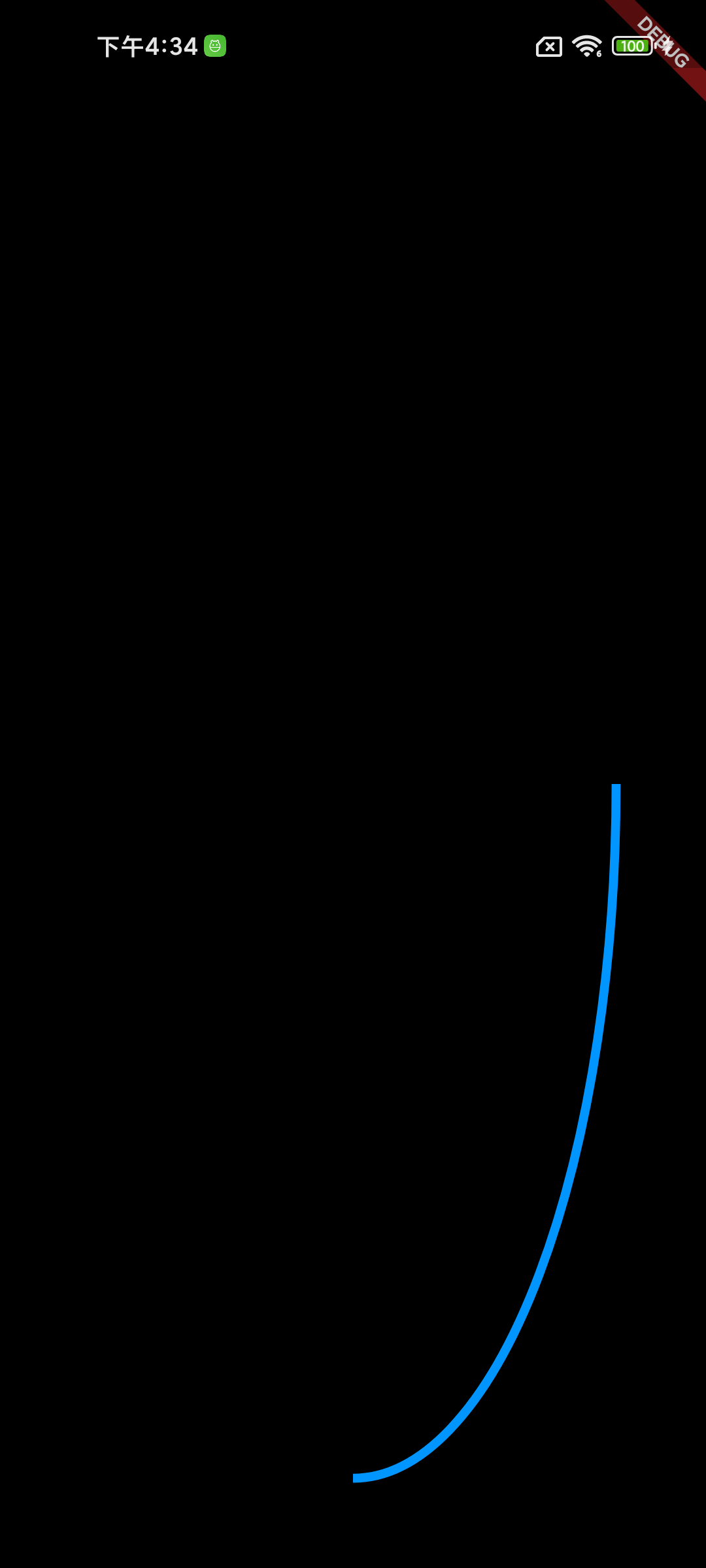
5、arcTo(rect, startAngle, sweepAngle, forceMoveTo)

  • arcTo(rect, startAngle, sweepAngle, forceMoveTo) 为绘制 圆弧
  • rect 圆弧外切矩形
  • startAngle 为起始角度,以经典坐标系的 x轴 为起始角度
  • sweepAngle 为扫过的弧度,和经典角度相反,顺时针为正弧度,逆时针为负弧度
  • forceMoveTo 是否强制移动过去
  • 以下为绘制的关键代码,注意参数是弧度,所以要用数据中的 pai 换算
1
2
3
4
5
6
7
8
9
10
11
12
13
14
@override
void paint(Canvas canvas, Size size) {
mPaint
..color = const Color(0xFF0095FF)
..style = PaintingStyle.stroke
..strokeWidth = 5;

final Rect rect = Rect.fromLTRB(50, 50, size.width - 50, size.height - 50);

// arcTo(rect, startAngle, sweepAngle, forceMoveTo)
mPath.arcTo(rect, 0, 90 * pi / 180, false);

canvas.drawPath(mPath, mPaint);
}
  • 以下为绘制出来的图形

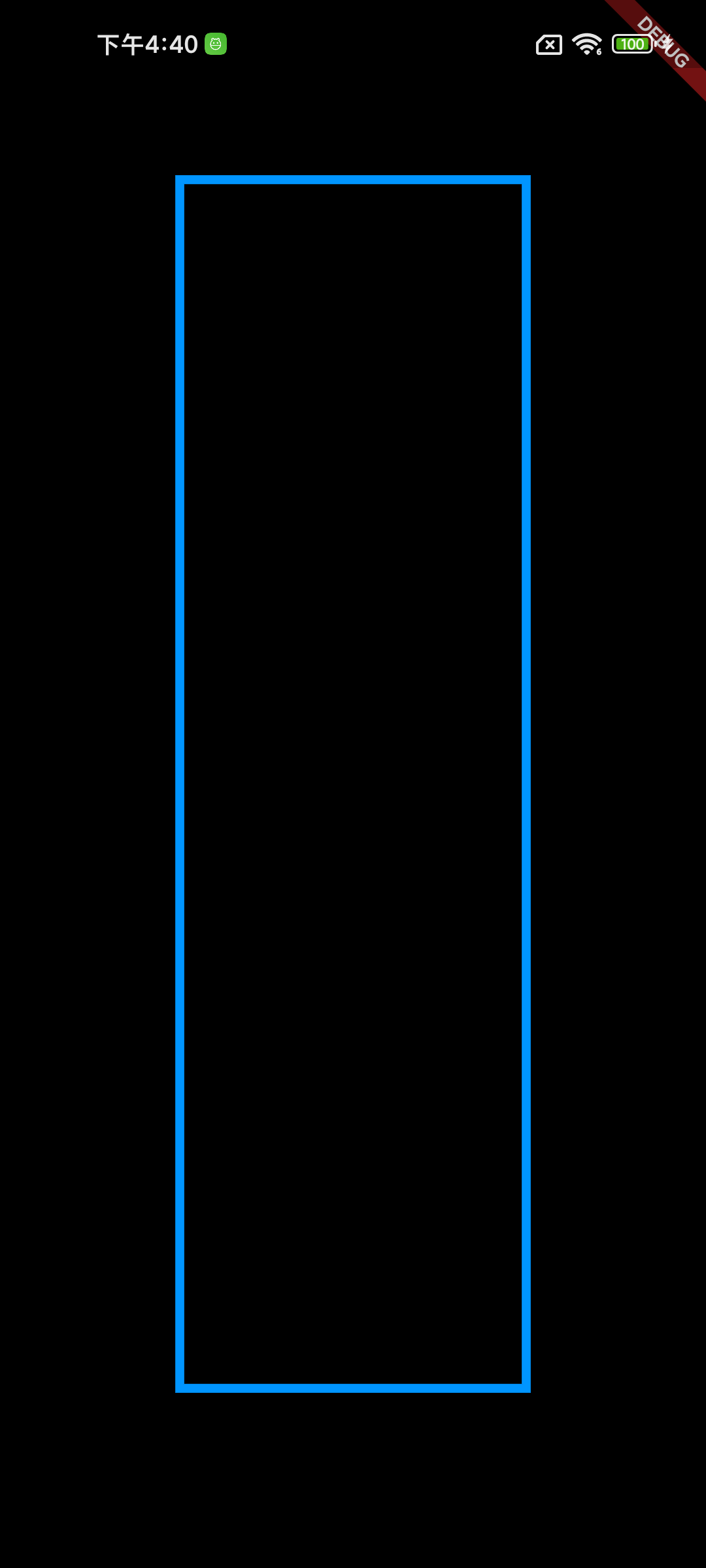
6、addRect(rect)

  • addRect(rect) 为添加 矩形,矩形参数为 rect
  • 需要注意的是,这里是 addXxx 方法,不再是 xxxTo
  • 以下为绘制的关键代码
1
2
3
4
5
6
7
8
9
10
11
12
13
@override
void paint(Canvas canvas, Size size) {
mPaint
..color = const Color(0xFF0095FF)
..style = PaintingStyle.stroke
..strokeWidth = 5;

final rect = Rect.fromLTRB(100, 100, size.width - 100, size.height - 100);

mPath.addRect(rect);

canvas.drawPath(mPath, mPaint);
}
  • 以下为绘制出来的图形

7、addRRect(rRect)

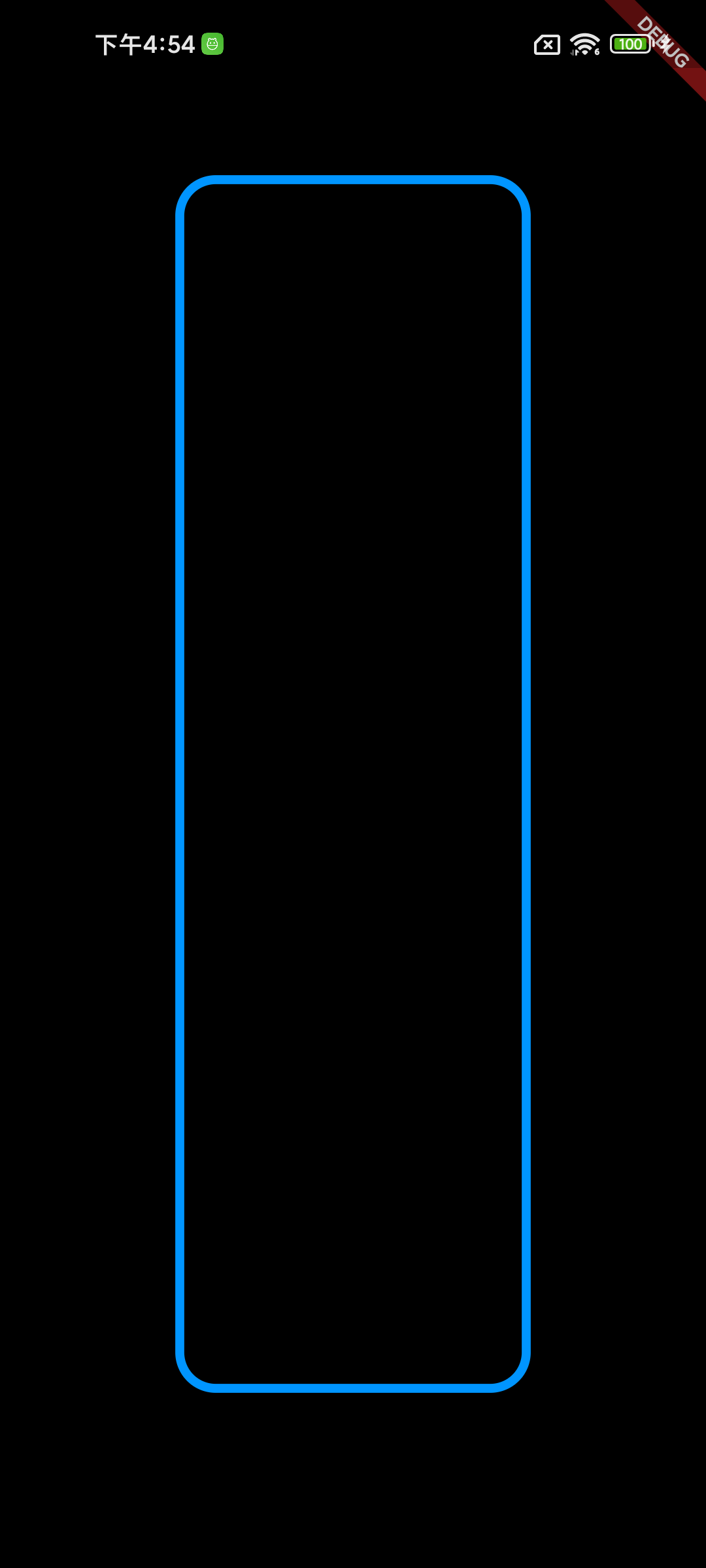
  • addRRect(rRect) 为添加 带弧度的矩形
  • 需要注意的是,这里是 addXxx 方法,不再是 xxxTo
  • 以下为绘制的关键代码
1
2
3
4
5
6
7
8
9
10
11
12
13
@override
void paint(Canvas canvas, Size size) {
mPaint
..color = const Color(0xFF0095FF)
..style = PaintingStyle.stroke
..strokeWidth = 5;

final rect = Rect.fromLTRB(100, 100, size.width - 100, size.height - 100);
final rRect = RRect.fromRectAndRadius(rect, const Radius.circular(20));
mPath.addRRect(rRect);

canvas.drawPath(mPath, mPaint);
}
  • 以下为绘制出来的图形

8、addOval(rect)

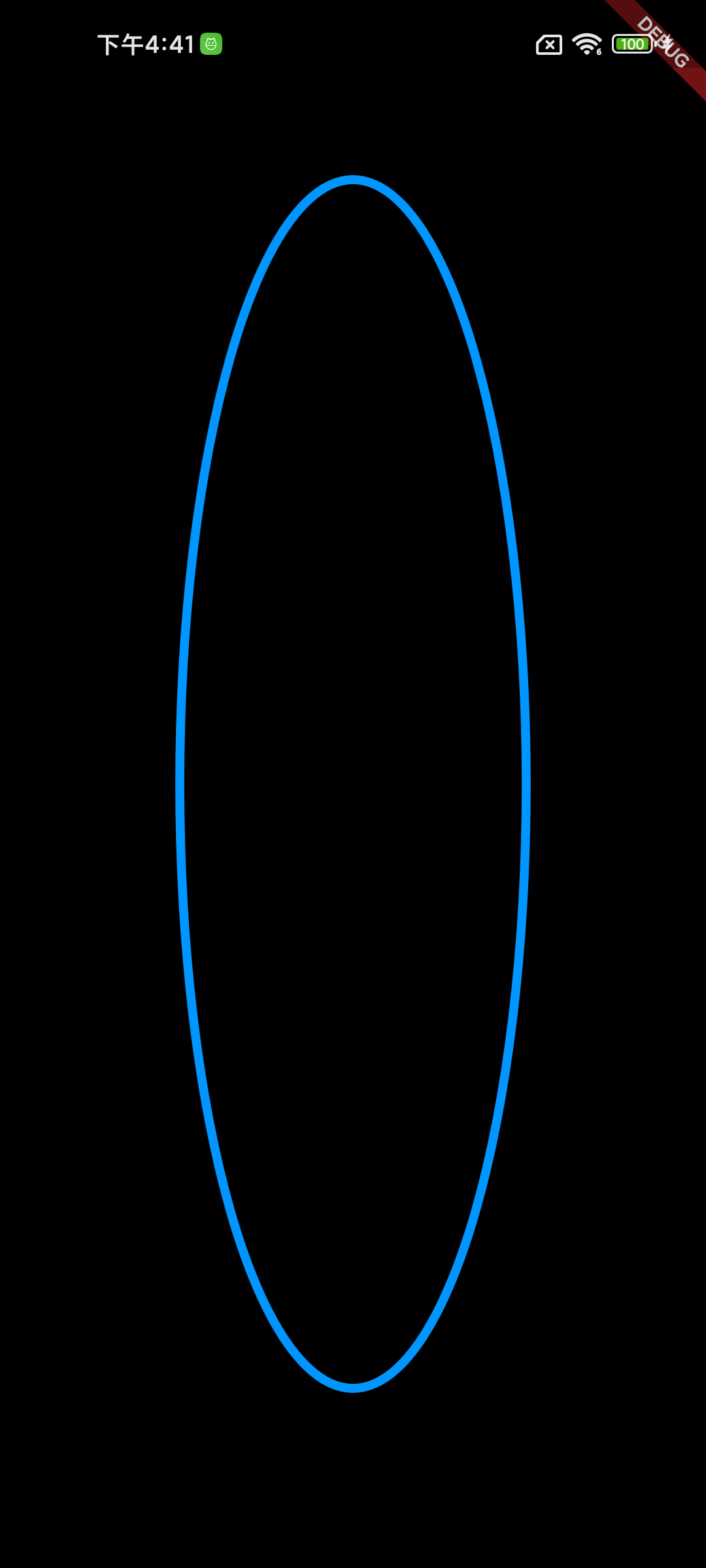
  • addOval(rect) 为添加 椭圆
  • 需要注意的是,这里是 addXxx 方法,不再是 xxxTo
  • 以下为绘制的关键代码
1
2
3
4
5
6
7
8
9
10
11
12
13
@override
void paint(Canvas canvas, Size size) {
mPaint
..color = const Color(0xFF0095FF)
..style = PaintingStyle.stroke
..strokeWidth = 5;

final rect = Rect.fromLTRB(100, 100, size.width - 100, size.height - 100);

mPath.addOval(rect);

canvas.drawPath(mPath, mPaint);
}
  • 以下为绘制出来的图形

9、addArc(rect, startAngle, sweepAngle)

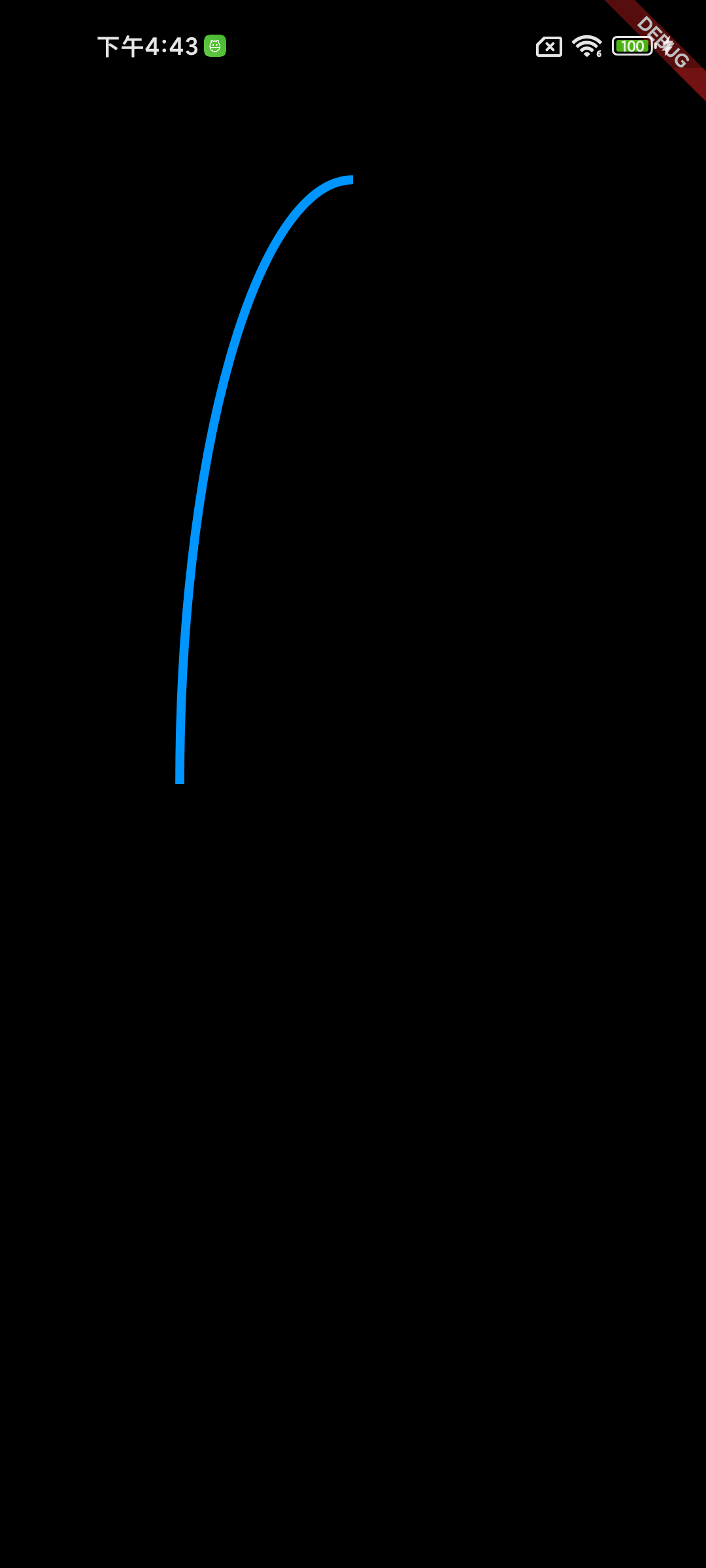
  • addArc(rect, startAngle, sweepAngle) 为添加 圆弧
  • 需要注意的是,这里是 addXxx 方法,不再是 xxxTo
  • 以下为绘制的关键代码
1
2
3
4
5
6
7
8
9
10
11
12
13
@override
void paint(Canvas canvas, Size size) {
mPaint
..color = const Color(0xFF0095FF)
..style = PaintingStyle.stroke
..strokeWidth = 5;

final rect = Rect.fromLTRB(100, 100, size.width - 100, size.height - 100);

mPath.addArc(rect, 180 * pi / 180, 90 * pi / 180);

canvas.drawPath(mPath, mPaint);
}
  • 以下为绘制出来的图形

10、addPolygon(List points, bool close)

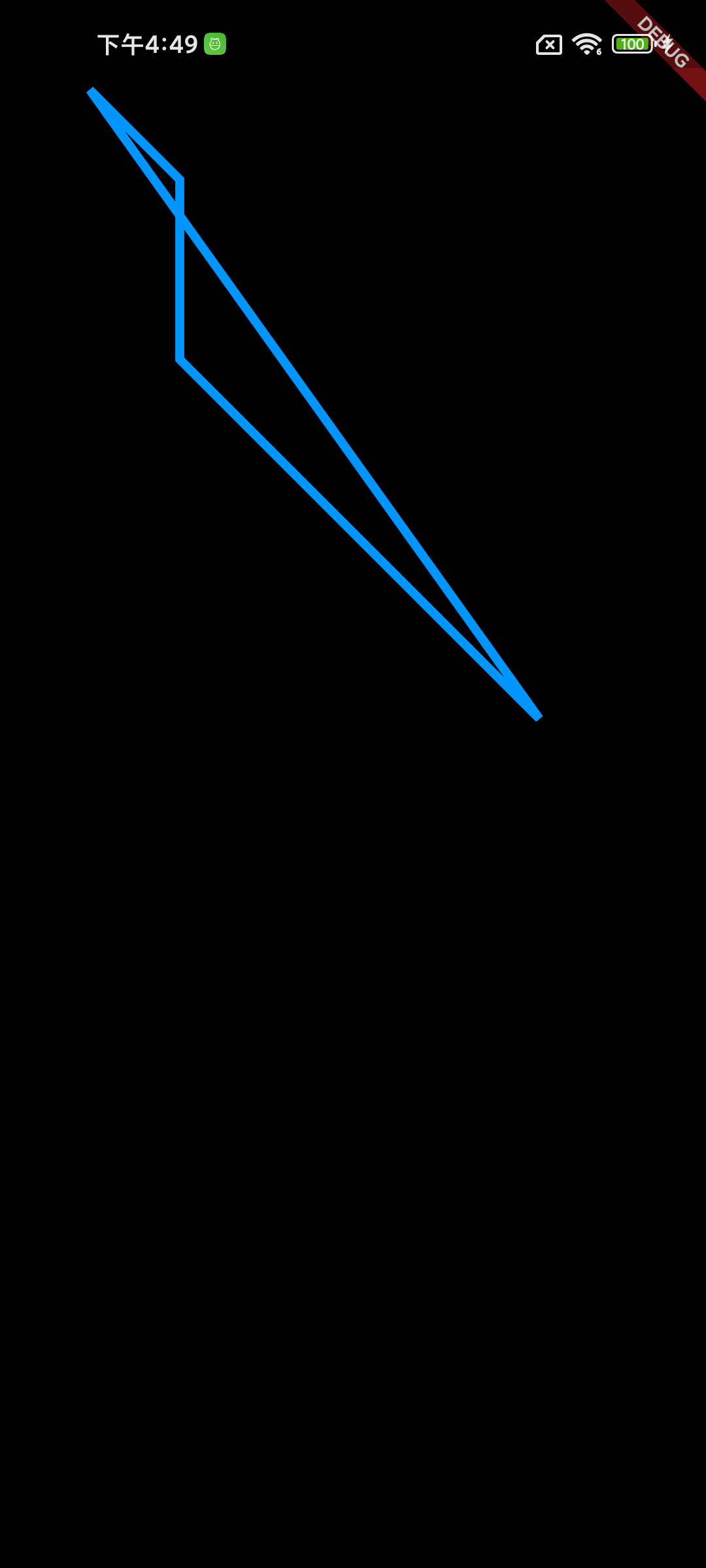
  • addPolygon 为添加 多边形close 参数是是否闭环
  • 需要注意的是,这里是 addXxx 方法,不再是 xxxTo
  • 以下为绘制的关键代码
1
2
3
4
5
6
7
8
9
10
11
12
13
14
15
16
@override
void paint(Canvas canvas, Size size) {
mPaint
..color = const Color(0xFF0095FF)
..style = PaintingStyle.stroke
..strokeWidth = 5;

mPath.addPolygon([
const Offset(50, 50),
const Offset(100, 100),
const Offset(100, 200),
const Offset(300, 400),
], true);

canvas.drawPath(mPath, mPaint);
}
  • 以下为绘制出来的图形

11、Path 绘制圆形进度条

  • 学习了这么多的方法,现在开始绘制一个圆形的进度条。
  • 直接上代码
1
2
3
4
5
6
7
8
9
10
11
12
13
14
15
16
17
18
19
20
21
22
23
24
25
26
27
28
29
30
31
32
33
34
35
36
37
38
39
40
41
42
43
44
45
46
47
48
49
50
51
52
53
54
55
56
57
58
59
60
61
62
63
64
65
66
67
68
69
70
71
72
73
74
75
76
77
78
79
80
81
82
83
84
85
86
87
88
89
90
91
92
93
94
95
96
97
98
99
100
101
102
import 'dart:math';

import 'package:flutter/material.dart';

class CircleBarPage extends StatefulWidget {
const CircleBarPage({super.key});

@override
State<CircleBarPage> createState() => _CircleBarPageState();
}

class _CircleBarPageState extends State<CircleBarPage> with SingleTickerProviderStateMixin {
/// 动画控制器
late AnimationController controller = AnimationController(
vsync: this,
duration: const Duration(seconds: 5),
);

/// 动画
late Animation<double> anim = Tween(begin: 0.0, end: 360.0).animate(controller);

@override
void initState() {
super.initState();
controller.addListener(() => setState(() {}));
controller.forward(from: 0.0);
}

@override
void dispose() {
controller.dispose();
super.dispose();
}

@override
Widget build(BuildContext context) {
final size = MediaQuery.of(context).size;
final width = size.width;
final height = size.height;
return Container(
width: width,
height: height,
padding: const EdgeInsets.all(30),
color: Colors.white,
child: CustomPaint(
painter: CircleBarPainter(anim.value),
child: Center(
child: Text(
'${(anim.value / 3.6).round()}',
style: const TextStyle(fontSize: 30, color: Colors.deepOrangeAccent),
),
),
),
);
}
}

class CircleBarPainter extends CustomPainter {
final Paint mPaint = Paint();
final Paint mPaint1 = Paint();
final Path mPath = Path();
final double progress;

CircleBarPainter(this.progress) {
mPaint
..color = const Color(0xFF0095FF)
..style = PaintingStyle.stroke
..strokeCap = StrokeCap.round
..strokeWidth = 8
..isAntiAlias = true;
mPaint1
..color = Colors.lightGreenAccent
..style = PaintingStyle.stroke
..strokeCap = StrokeCap.round
..strokeWidth = 8
..isAntiAlias = true;
}

@override
void paint(Canvas canvas, Size size) {
// 控件中心坐标
final centerX = size.width / 2;
final centerY = size.height / 2;
final center = Offset(centerX, centerY);
final radius = centerX;

// 绘制进度条底色
canvas.drawCircle(center, radius, mPaint);

// 进度条对应的矩形
final rect = Rect.fromCircle(center: center, radius: radius);

// 进度条从最上面开始算角度
canvas.drawArc(rect, -90 * pi / 180, progress * pi / 180, false, mPaint1);
}

@override
bool shouldRepaint(covariant CustomPainter oldDelegate) {
return false;
}
}

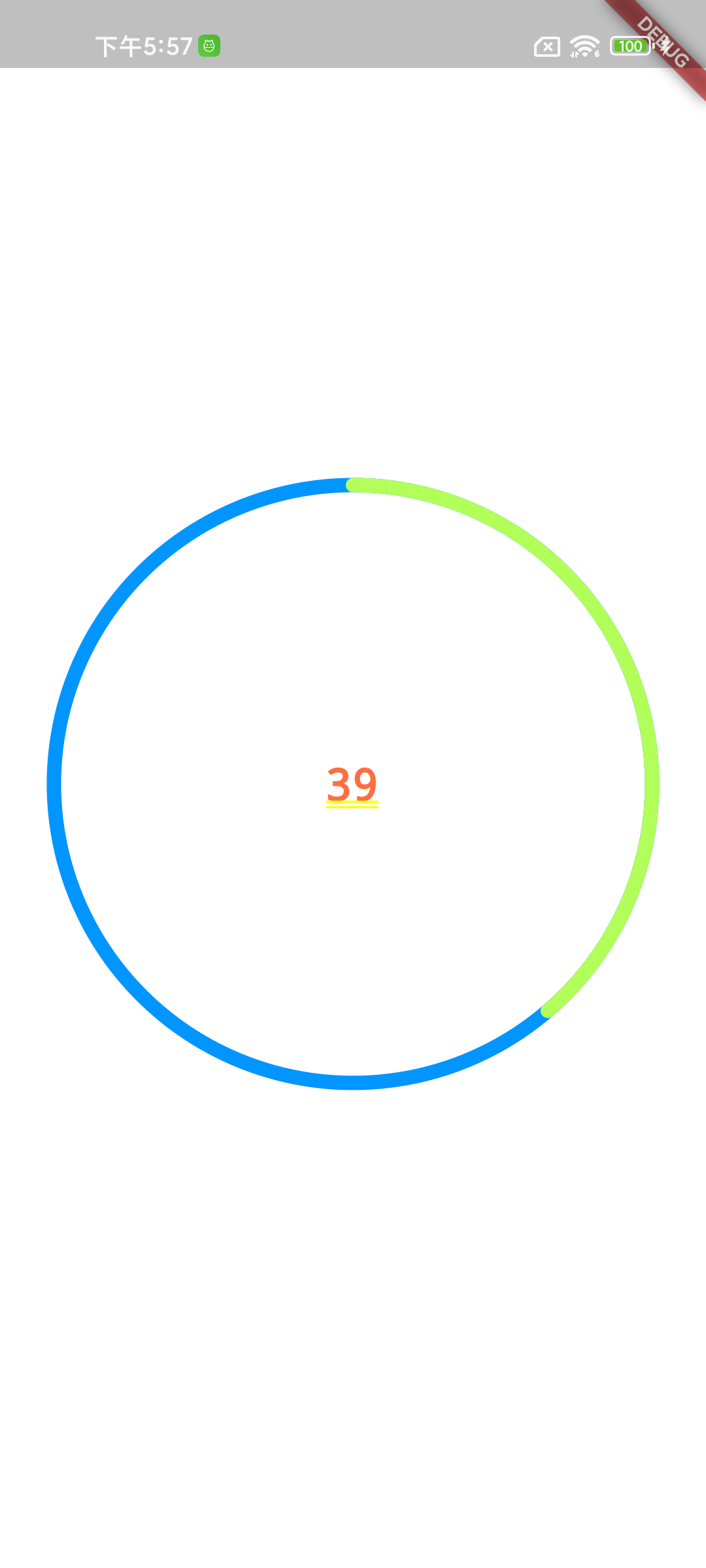
  • 通过 AnimationController 来控制动画时间为 5 秒
  • 通过 Animation 来创建一个 Tween 动画,进度为 0 到 360 度
  • 页面初始化的时候,添加监听,并跑动画 controller.forward()
  • 在绘制的时候,先绘制一个底色圆
  • 再根据进度参数,绘制对应的圆形进度条
  • 以下为绘制出来的一个动画截图

代码传送门

参考资料


Flutter Path 学习日记 (一)
http://jxr202.github.io/flutter/flutter_012-af9a9a1f13a0/
作者
Jiang
发布于
2023年11月7日
许可协议