使用 Github + Hexo 搭建个人博客

〇、说明
- 本次搭建是以 Mac 平台为准,Windows 或其他平台的命令会有一些细微的不同。
一、准备工作
1、Github账号
- 没有 Github 账号就没得玩了,赶紧申请一个吧!
- 截止到目前,已经无法申请到纯英文的短账号了。我尝试了我的姓名的拼音注册,已经不让申请了,只能拼音+数字。
2、Git 安装
- 没有 Git,就玩不转。建议自己去找找 Git 怎么安装的。
3、NodeJS
- 如果你想在 IDEA 中运行 JS代码,这个是必须的,Hexo 也是基于 NodeJS。目前 NodeJS已经内置 npm 。
- 传送门:https://nodejs.org/zh-cn/download/
二、Github 仓库创建
- 登录 Github,进入 Repositories,点击 New 创建一个仓库。
- 仓库名必须是:用户名.github.io。如果不是,你的个人博客的链接会很长。
- 参考我的图片,因为我已经创建过了,再次创建同名的会有红色警告。
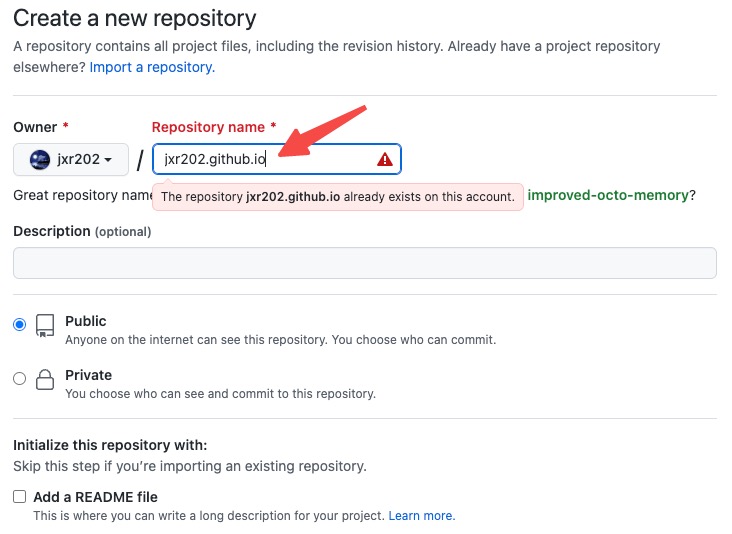
- 完成之后,你的博客已经搭建好了,链接为:用户名.github.io,但该博客并不是我们想的的,我们希望的博客是各种花里胡哨的,这就需要用到 Hexo 了。
三、Hexo 安装
Hexo 功能齐全,能为我们节省很多成本。官网链接:https://hexo.io/zh-cn/
安装 Hexo
1
npm install -g hexo-cli查看版本,如果运行这个命令没报错即安装成功了
1
hexo -v创建项目 hexo-blog 并初始化,这是三步
1
2
3
hexo init hexo-blog
cd hexo-blog
npm install本地启动
1
2
hexo g
hexo s验证,浏览器打开:http://localhost:4000
四、主题更换
- 主要介绍比较流行的 NexT 和 Fluid,其他主题基本上类似的。
1、NexT 主题
安装
1
2
cd hexo-blog
git clone https://github.com/iissnan/hexo-theme-next themes/next打开 hexo-blog 根目录的 _config.yml 文件,将主题修改为 next
1
theme: next本地启动验证
1
2
hexo g -d
hexo s
2、Fluid 主题
下载。从 github 下载最新的 release 版本,即 Source code。
1
链接:https://github.com/fluid-dev/hexo-theme-fluid/releases安装。将下载的文件解压,改名为 fluid 并移动到 hexo-blog/themes 目录中。
修改。打开 hexo-blog 根目录的 _config.yml 文件,将主题修改为 fluid
1
2
theme: fluid # 指定主题
language: zh-CN # 指定语言创建 About 页面
1
hexo new page about编写 About 页内容。打开 /source/about/index.md,修改为如下内容:
1
2
3
4
5
6
---
title: about
date: 2022-10-11 19:12:57
layout: about
---
这是我的关于页验证
1
2
hexo g -d
hexo s
五、写博客
- 启用 Assets。将根目录的 _config.yml 打开,修改 post_asset_folder 为 true。目的是在创建文章的时候会生成一个文件夹用于放图片等资源。
1
post_asset_folder: true - 创建文章
1
2
hexo new post 测试文章
// 这时候 source/_posts 目录下生成了一个 测试文章的文件夹和 md 文件 - 添加内容。打开 md 文件,添加内容。
1
2
3
4
5
6
7
8
9
10
---
title: 测试文章
date: 2022-10-11 19:16:46
tags:
- 原创
- categories:
- Java
---
这是一篇测试的文章,只有一行字和一张图片
{% asset_img test.jpeg 图片引用方法一 %} - 验证
1
2
3
hexo g -d
hexo s
浏览器打开:http://localhost:4000
六、博客个性化页面
1、浏览器 Tab 页名称
- 打开根目录下的 _config.yml,修改 title 属性
1
2
3
4
5
6
7
8
# Site
title: 先先的个人博客
subtitle: '先先'
description: '先先的个人博客'
keywords:
author: Jiang
language: zh-CN
timezone: ''
2、修改博客标题
- 打开 themes/fluid 下的 _config.yml,修改 blog_title 字段:
1
blog_title: "先先的个人博客"
3、修改主页文字
- 打开 themes/fluid 下的 _config.yml,修改 text 字段:
1
text: "先先的个人博客"
七、添加阅读量数据
- Fluid 已经内置了阅读量的功能,但默认没有开启。
1、申请 LeanCloud 账号,并创建应用
注册账号。 这里必须要注意,选择国际版。国内的2个版本已经不再提供服务。 传送门:https://console.leancloud.cn/apps
实名认证
邮箱验证
创建应用。选开发版
创建 Class。在结构化数据中创建 Class,名称为 Counter,选无限制。这一步是关键。
配置 AppID、AppKey 及 服务器地址,三者缺一不可。 在应用的 设置 - 应用凭证 页面可以看到这三项。
2、修改 Fluid 配置
打开 themes/fluid 下的 _config.yml,修改 web_analytics 的 enable 为 true。
1
2
web_analytics: # 网页访问统计
enable: true配置 leancloud 的 app_id、app_key 和 server_url,注意冒号后的空格。
1
2
3
4
leancloud:
app_id: xxxxxxxx
app_key: xxxxxxxx
server_url: https://xxxxxxxx.lc-cn-n1-shared.com修改 views 字段的 enable 为true,srouce 为 “leancloud”,打开统计功能,统计源改为 leancloud。
1
2
3
4
5
6
# 浏览量计数
# Number of visits
views:
enable: true
source: "leancloud"
format: "{} 次"
八、添加评论功能
- 打开 themes/fluid 下的 _config.yml,修改 comments 字段下的 enable 为 true,type 为 valine。
1
2
3
4
5
6
7
8
# 评论插件
# Comment plugin
comments:
enable: true
# 指定的插件,需要同时设置对应插件的必要参数
# The specified plugin needs to set the necessary parameters at the same time
# Options: utterances | disqus | gitalk | valine | waline | changyan | livere | remark42 | twikoo | cusdis | giscus
type: valine - 配置 valine 字段下的 appId、appKey 和 serverURLs 属性。
1
2
3
4
5valine:
appId: xxxxxxxx
appKey: xxxxxxxx
...
serverURLs: 'https://xxxxxxxx.lc-cn-n1-shared.com' # 把xxxxxxxx替换成你自己AppID的前8位字符
九、部署到 Github
方式一
- 安装 hexo-deployer-git
1
npm install hexo-deployer-git --save - 修改根目录下的 _config.yml,配置 Github 信息。建议使用 git 开头的,而不是 https 的形式。
1
2
3
4
deploy:
type: git
repo: git@github.com:jxr202/jxr202.github.io.git
branch: main - 部署到 Github
1
hexo g -d - 验证。打开 https://jxr202.github.io 验证。
方式二
- 直接将 public 目录中的所有目录和文件 push 到 Github 仓库中。
致谢
本文参考了一些其他人的资料,在此表示感谢。
参考链接:
https://blog.csdn.net/yaorongke/article/details/119089190